Listening to our live shows
| Some EdTechTalk shows use audio only Shoutcast streams. This can be accessed using almost any media player. EdTechTalk A is the 'main' stream. EdTechTalk B is used to provide a low bitrate option when possible. |
|
These instructions are also available as a short 3 minute video screencast/demo.
Listening via Shoutcast Audio Stream
We wish there was an easy 'one click' listening option that would serve all users, but that's not yet possible. To listen to Worldbridges webcasts, click on one of the media player icons above. All of the media players listed below can work, but which one is best and/or easiest for you will depend on how your computer is set up. Please note - You do NOT need to use skype in order to listen to one of our webcasts - you only need to use skype or join the teleconference (see below) if you wish to join the discussion to make comments or ask questions.
The default player link (to a .pls file) is the preferred method of listening. Which program it uses to open the live audio stream will depend on which Operating System you are using and which programs you have installed. It should work with ITunes, Quicktime, Winamp, or Jet Audio. Info about how to change the program that is associated with pls files on your system: Windows * Mac
If you would like to listen with Real Player , simply click on the Real Player Icons above.
If you would like to listen with Windows Media Player, click on the appropriate links above. This will not work if you are using a Mozilla based browser like Firefox or Netscape.
To listen with Windows Media Player from Firefox or other Mozilla browsers
open WMP and paste in the one of the URL's below after clicking File/Open URL
http://edtechtalk.com/stream1.asx (EdTechTalk A)
http://edtechtalk.comt/stream2.asx (EdTechTalk B)
Listening via Ustream
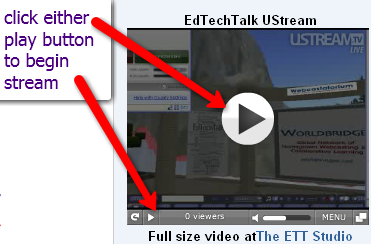
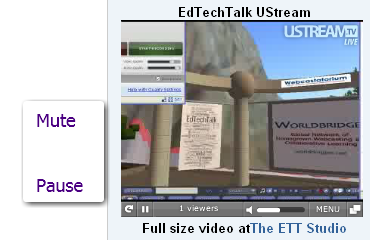
Some EdTechTalk shows use Ustream to stream audio and/or video. The player can be found on the right side of edtechtalk.com/live.
- Log in to post comments


Comments
We wish there was an easy
"We wish there was an easy ‘one click’ listening option that would serve all users, but that’s not yet possible."
del.icio.us might have a solution for you. you include this small script on your page, and any link to an mp3 gets a small player to the left of it. really cool,and free. read their document writeup here: http://del.icio.us/help/playtagger
--------------------
21apples - my blog on learning in the 21st century
That is a very cool option
That is a very cool option for adding a 'one click option' for recorded audio. In the listening guide above, however, I was refering to a one click option for listening to the live stream of audio. The audio is not actually streamed live as an mp3, but rather a '.pls' file. We can create work arounds so that it's converted to a pseudo .asx or pseudo .ram, but we're still looking forward to the day when there is a one click option for live streaming.
Thanks for the comment and congrats on being the very first commenter on EdTechTalk.com 2.0
Hit and miss conversations
"Hit and miss" is inevitable and not such a bad thing.
I don't have a classroom or a set of students right now. I'm in a library. But I have a bunch of kids hanging out in my library all the time, with a self-selected crew hanging in the library office. [ It ain't my office anymore; it's theirs.] What I am confronted with is the essential social component of their interests.
We have a connection to the 826 Valencia workshop program here in SF. There are several students = h.s. juniors and seniors - with interest in some of the workshops. But not one of them signed up until I recruited a partner to go with them. Then it was easy to spread the meme.
It's all social. Even more so in middle school, at least from the perspective of my 17 years in m.s. before moving to the relative calm of h.s.
How do we enable the power of social connection, benign "cliques" and ""groups", in a virtual environment? And then how do we "channel" it?